

This video walks you through how to enable and initialize Skadi Tilt Compensation™ from Eos Positioning Systems®. Skadi Tilt Compensation allows you to obtain accurate GNSS locations without leveling your surveying range pole. This makes field work faster, more efficient, and minimizes human error. Skadi Tilt Compensation may be used with a Skadi 200™, Skadi 300™, or Skadi Gold™ GNSS receiver.
In this video, you will learn how to use the two methods for enabling tilt compensation, along with setting your range pole height, acquiring an RTK fix, and performing the initialization motion. You’ll also learn how to monitor your Skadi receiver’s LED indicators during field work, ensuring you maintain optimal accuracy in the field.
Launch the video to watch the step-by-step tutorial, or follow along with the transcript below!
Transcript
This video will show you how to enable and initialize Skadi Tilt Compensation.
Step 1: Enable Skadi Tilt Compensation

There are two methods to choose from to enable. This video will show you both.
In the first method, you’ll use Eos Tools Pro. Navigate to the tilt compensation settings.

Toggle on Skadi Tilt Compensation.

Tilt compensation is now enabled.
Alternatively, to use the second method, you may press the receiver’s power button three times to enable tilt compensation.

Once Skadi Tilt Compensation is enabled, the “Tilt” LED will turn on and blink red fast.
Now we must set our range pole height.
Step 2: Setting Range Pole Height in Eos Tools Pro
First, you need to calculate your pole height from the bottom of the receiver.
This value includes the length from the bottom tip of your pole to its top, plus the height of the Pole Mounting Cradle Assembly.

If you are using the 2m Sectional, Carbon Fiber Pole supplied by Eos Positioning Systems, your pole height is 2.037 meters.

Now, in Eos Tools Pro’s “Pole Height” settings, enter your value into the “Range Pole Height” field.

Now, your “Tilt” LED will blink red at a medium speed.
Step 3: Acquire an RTK Fixed Position
Next, Skadi Tilt Compensation requires an RTK fixed status to operate.
To establish a fix enter your RTK login credentials in the differential settings menu of Eos Tools Pro.

As soon as your RTK status is fixed, your red “Tilt” LED blink rate will slow down noticeably to indicate you are ready for the next phase.
Step 4: Initialize Skadi Tilt Compensation
Finally, it is time to initialize tilt compensation.
Move your range pole back and forth in a smooth motion. Aim to achieve a speed of about three feet per second.
Once tilt compensation is initialized, your “Tilt” LED will turn solid green.
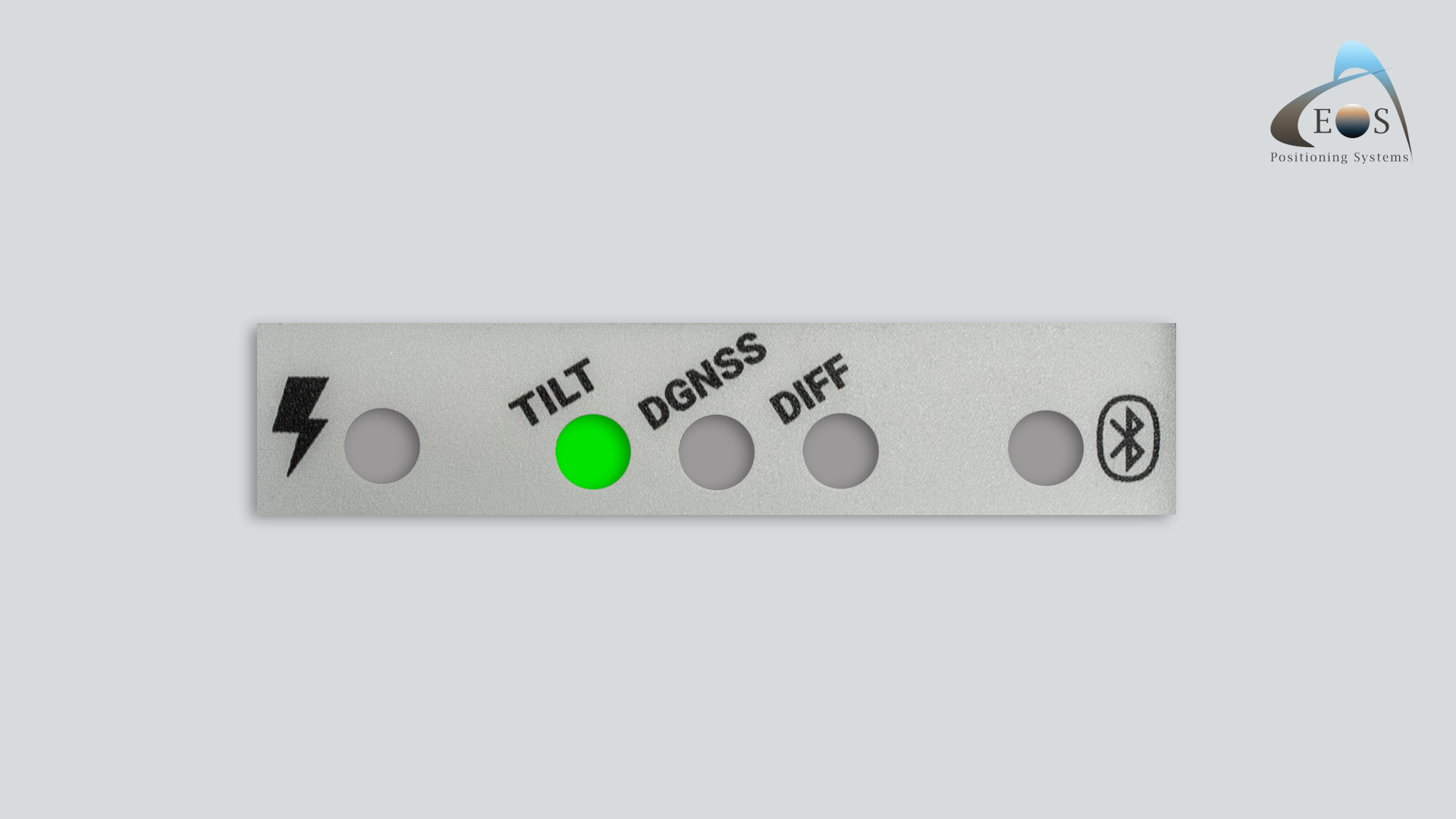
For faster subsequent initializations, toggle on the “Auto-start streaming” field in the “NTRIP” settings of Eos Tools Pro.

You are now ready to perform field work in your mobile app of choice. Your “Tilt” LED will remain solid green as long as your GNSS positions are valid.

Monitoring the Skadi “Tilt” LED During Field Work
Now let’s look at how to monitor changes to your “Tilt” LED during field work to troubleshoot any issues.
A fast-blinking red “Tilt” LED means you need to enter your range pole height.
A medium-blinking red “Tilt” LED means you need to acquire an RTK fix.
A slow-blinking red “Tilt” LED means you must initialize tilt compensation. Note that if you leave your receiver idle for about 10 minutes, initialization will end. Simply perform the initialization motion again.
Continue Watching the Skadi Tilt Compensation Playlist
Find the next video in the Skadi Tilt Compensation video series by watching the full playlist.
Explore Related Items

Skadi Tilt Compensation™: User Manual
This manual guides you through the steps to enable, initialize, and begin using Skadi Tilt Compensation™. Requires a Skadi Tilt Compensation activation.

How to Mount Your GNSS Hardware for Skadi Tilt Compensation™ [Video]
In this video, learn how to mount your Skadi RTK GNSS receiver and accessories to a range pole to use with Skadi Tilt Compensation™.