

In this video, GNSS Technical Expert Tyler Gakstatter demonstrates the two modes of the Skadi Smart Handle™ from Eos Positioning Systems®: the Extensible Virtual Range Pole™ mode and Invisible Range Pole™ mode. Both modes leverage advanced sensor technology to deliver even more flexible and safer GNSS workflows in the field.
Tyler also walks through some real-world use cases, including how to map assets with ArcGIS® Field Maps and the Skadi Smart Handle in both modes.
Watch the full video or scroll down to follow the written tutorial!
Video
Transcript
Extensible Virtual Range Pole™ Demonstration
As an overview, the Extensible Virtual Range Pole mode uses a combination of the GNSS receiver, the inertial measurement unit (IMU) for tilt compensation, and the LiDAR sensor that’s in the smart handle. So, by inserting the smart handle into our Skadi GNSS receiver, we’ve added LiDAR as a capability to our GNSS workflows. And what that is going to do is allow me to measure distances and angles from my GPS receiver.
Extensible Virtual Range Pole mode is kind of a directional mode. What I mean by that is I’ve got a visible green laser light that’s flashing right underneath me, wherever I’m pointing. And while the smart handle is in this mode, it’s not going to be outputting a GPS position until I press and hold the trigger, which is just underneath the handle here.

So, as soon as I press and hold the trigger, that green laser light goes solid. And wherever I point that laser now, it’s going to report my GPS position of that target to ArcGIS Field Maps or whatever mapping application you use.

Let’s look at that in ArcGIS Field Maps.
Did You Know?
Pressing and holding the Skadi Smart Handle trigger is the only way to transmit GNSS positions to your third-party app (e.g., ArcGIS Field Maps) while in Extensible Virtual Range Pole mode. As long as your trigger is pressed in extensible mode, you are sending GNSS positions to your app. When you release the trigger, no more positions will be streamed to your app.
ArcGIS Field Maps is saying, “Connecting to device” because I’m not pressing the trigger. It’s important to remember that the Skadi is not transmitting any GPS positions to your third-party app until the trigger is pressed and held.

Now, if I press and hold the trigger, ArcGIS Field Maps gets our position and shows our GPS accuracy at the top there in the GPS bar, at 0.4 cm.

Wherever I point that green laser is where my position is seen in ArcGIS Field Maps. So, I’m standing in the middle of this parking spot and aiming the laser at the end of this parking lot line. See that there?

Now I’ll aim at the other parking lot line, without moving my own position. Now I’m aiming at another one. So, wherever I’m pointing this laser — while I press the trigger — ArcGIS Field Maps is getting that position of that target.

So, let’s capture a couple of features …
Using ArcGIS Field Maps with the Extensible Virtual Range Pole
So, first, I’ll capture a point feature.
Mapping a Point in ArcGIS Field Maps with the Extensible Virtual Range Pole
When we capture a point in ArcGIS Field Maps using this new technology, we’re going to take advantage of ArcGIS Field Maps’s GPS averaging tool.
I have the GPS averaging field in ArcGIS Field Maps set to two points. And you can see there once I started collecting a feature, the app is kind of stuck in this state of averaging at 0 to 2 points. You can see that at the top GPS bar. What it’s doing is waiting for a valid GGA position to come through to perform the GPS averaging. As soon as I press and hold the trigger and we get valid GPS data, it’s going to average those two points and provide a final location to the feature.

Then, I can submit the point to the cloud by pressing, “Submit.”
So, if I want to do that again, I can click, “Start Averaging.”

For instance, I can go to the end of this parking lot line, aim at the end, and pull the trigger. After GPS averaging, ArcGIS Field Map gets my position. And now I can save that to my map.


Mapping a Line in ArcGIS Field Maps with the Extensible Virtual Range Pole
I can also use this workflow to map a line.

If we select to add a new line feature, we could use two methods. First, we could use GPS averaging to collect each vertex individually or we can use streaming mode.
Let’s do streaming. So, I’ll press “Stop Averaging.”

Now hit the three dots in ArcGIS Field Maps and select “Start Streaming.”

Now I can draw this curb as a line. So, without pulling the trigger, I’m going to aim the laser at my starting point on the curb. Watch what happens when I press and hold the trigger. The green laser pointer goes solid, and our location dot turns blue in ArcGIS Field Maps. And now I’m just going to basically draw this curb directly into ArcGIS Field Maps using this laser as my visual guide.

So, to recap, this workflow is combining real-time kinematic (RTK) positioning, that IMU tilt sensor, and the LiDAR sensor for distance measurements from my receiver down to the curb. What that means is that just by holding down this trigger, walking along this curb, and pointing the laser, I’m essentially drawing this curb right into the map.
Make sure to hit “Submit” to save your work.

Now we can see our new curb line. It falls pretty much directly on top of the other lines that I’ve captured during previous demonstrations.

Navigating to Existing Features in ArcGIS Field Maps with the Extensible Virtual Range Pole
Another workflow for the Extensible Virtual Range Pole is finding existing features in ArcGIS Field Maps in the real world. To do this, we first select a feature; I’ll choose that one.

Next, I’ll select the “Compass” tool in ArcGIS Field Maps, which starts my navigation. Be sure to press and hold the trigger.

Now imagine if this grass was five feet tall, or our asset was covered with snow, or our asset was located in an unoccupiable location, or it was otherwise not easily visible. I simply select that asset in ArcGIS Field Maps, put Field Maps into compass mode, press and hold the Skadi Smart Handle trigger. The blue dot in the app shows where I point the laser, so I can point the laser around until its position matches that of my asset. Once it matches, now I can navigate to my asset.

So, I see where I’m pointing. So now I can stop pressing and walk over there to get a closer look.

There we go. My asset is this corner piece of this landscaping design.
So, this makes it really efficient to find existing features, especially if you maybe need to look in dangerous places; maybe there’s a backyard with a valve behind a fence or a big dog or something like that. Now, you could just point the laser over that fence into the area and locate that feature.
Invisible Range Pole™ Demonstration
Invisible Range Pole mode is a little different than Extensible Virtual Range Pole mode. It actually works more like a traditional GPS receiver in that it continuously outputs a new position once per second without regard for the trigger.
One of the big differences in this mode is not directional. You don’t point at a target with the laser and trigger. Instead, Invisible Range Pole mode uses the LiDAR sensor on the underside of the smart handle to dynamically calculate the antenna height, which is the distance between the bottom of the receiver to the ground, each second.

So anywhere I hold this receiver either up or down, or side to side, the smart handle is going to recalculate the antenna height so that my elevations remain precise and accurate as I move around. This mode can be useful for lots of different types of workflows. You may use the Invisible Range Pole mode to stream lines or polygons You could be walking a curb or doing topography surveys.
Now, we’re going to look at how to get this mode set up, including how to put the Skadi Smart Handle into the Invisible Range Pole mode and how to use this mode in a couple different applications. So, we’re going to look at ArcGIS Field Maps and we’re going to collect some lines and points in real time.
The first thing I need to do is get into the correct mode. I’ve already got the smart handle inserted into the Skadi Gold, Eos Tools Pro is running on my phone, and I’ve got an RTK fixed position. So that’s kind of our baseline.
Note that both of these smart handle modes need to have an RTK fixed position. So, make sure you’re in your RTK fixed status: Connect to your local base station or RTK network and wait for the status in the upper left corner of Eos Tools Pro to say, “Fixed.”

Next, we need to put the smart handle into the correct mode. If you look in the upper right-hand corner of Eos Tools Pro’s “Position” page, there’s a smart handle icon that says, “Smart Handle: Disabled.” That’s the default status when all you’ve done so far is insert the smart handle into the Skadi receiver.
Important Note:
Before using these modes, you will need to enable the receiver. To do so, tap on the smart handle icon to launch the Skadi Smart Handle settings menu. Now, tap the first switch to enable the smart handle.

Toggling Between Skadi Smart Handle Modes
There’s two ways to cycle between smart handle modes — let’s review both.

First, you tap on that smart handle icon, turn on the smart handle, and it will go into Extensible Range Pole mode by default. Now, you can switch modes by using these tabs labeled “Extensible” and “Invisible.” You also get an audio alert when the handle switches to a new mode.

The other way to toggle between modes is by using the trigger. So, let’s disable the smart handle in the app by switching it off so we can demonstrate.
Did You Know?
When disabling the smart handle, you’ll receive an audible alert that says “GNSS mode” because you’re now using the Skadi as a regular GNSS receiver instead of with the smart handle.
Now go back and keep your eye on the “Smart Handle: Disabled” icon there. I’m going to tap the trigger three times.

This is going to enable my smart handle and put it in extensible mode by default. That’s going to do the same thing as if we went into the app here and enabled the smart handle. You can see it toggled on now.

So, I’ll do it again: Tap the trigger three times. And it’s going to go to Invisible Range Pole mode from extensible.
If I tap the trigger three more times, it reverts to Extensible Virtual Range Pole mode. So once the smart handle is enabled, every time you triple-tap that trigger, the handle will toggle between those two modes (i.e., extensible and invisible).
We’re looking at Invisible Range Pole Mode now, so I’m going to switch the mode to “Invisible” using the app and then go back to my “Position” page. In the upper right-hand corner now, the app says, “Smart Handle: Invisible.” And it’s green. This means it’s enabled and initialized in Invisible Range Pole mode.

In Invisible Range Pole mode, you’re not going to see the green laser pointer. That’s because Invisible Range Pole mode is not using a directional measurement. No matter what orientation I’m holding the Skadi Gold in, the smart handle is using its LiDAR sensor to measure directly to the ground in the line of gravity.
If the smart handle icon is red and says, “Initiate Motion,” that means that the tilt sensor is not calibrated yet. And so, you need to move the Skadi around a little bit while you have an RTK fixed position. And usually just a bit of motion will get it initialized, and then that icon will turn green and, you know, let you know that you’re ready to collect data.
Notice that in Invisible Range Pole mode, you’re not going to see the green laser pointer like you do with Extensible Virtual Range Pole mode. And that’s because the invisible mode is not using a directional measurement. No matter what orientation I hold the Skadi Gold in, the smart handle is using the LiDAR sensor to measure directly to the ground in the line of gravity.
So, it doesn’t matter where I’m pointing the handle or how I’m orienting the receiver — it’s going to GPS a position down to the ground just below me. And so, as I move the receiver around, and if we go into the “Map View” here, you’ll see that wherever I go, my GNSS horizontal position follows where the Skadi Gold is, and my Z value is directly down to the ground.
So, let’s look at this in ArcGIS Field Maps …
Using ArcGIS Field Maps with the Invisible Range Pole
In ArcGIS Field Maps, the Invisible Range Pole is going to operate a lot like a regular GNSS receiver, without tilt compensation or anything. It’s just going to be spitting out a new position at a rate of once per second. So, to see this, first ensure you’ve got the Skadi selected in your “Location Provider” ArcGIS Field Maps settings like I’ve done here.


Once the Skadi receiver is set as your location provider, you can open your map. Look at our blue location dot. That blue dot is going to follow wherever your Skadi receiver goes. For example, let’s go to the end of this parking lot line.

And I’m not collecting any data yet. This is just real-time positioning. But I’m kind of hovering over this parking lot line. And you can see on the map that my blue location dot is right at the end where it should be. Now I’ll go to the other side. The blue dot is going to follow along.

And now we’re hovering over the other side.
What’s most interesting is the elevation. If I open up the GPS details in ArcGIS Field Maps, and we look at our “Altitude,” it’s at 48 meters. As I move this smart handle, our altitude measurement is going to remain approximately the same. The measurement is varying a little bit, of course, but if I were not in Invisible Range Pole mode and were using just a standard GNSS receiver, that altitude value would be moving a lot more. So, it maintains that elevation at the surface of the ground, even as I move up and down.

Now let’s collect some data here in ArcGIS Field Maps with the Invisible Range Pole.
Mapping a Line in ArcGIS Field Maps with the Invisible Range Pole
Let’s start by mapping a line with ArcGIS Field Maps and the Invisible Range Pole. Let’s go over so we can start at the beginning of this parking-lot line. Hold the LiDAR sensor over the end of the line. Remember it doesn’t matter how high or low you’re holding the smart handle. Just hold it in a way where it can get good GPS signal.
Hit the plus sign.

Let’s choose a line, and let’s press the ellipses and “Start Streaming.”

So now, as my hand moves, I can see ArcGIS Field Maps dropping points along the line I am creating. And the elevations of the vertices of this line, again, are going to be tied to the surface of the Earth, or the ground below you. Even if I vary that height of the Skadi Gold, where I’m holding it throughout that data collection process.

Now tap “Stop Streaming” to end your line feature.

Tap “Submit” to save your work.

So that’s how you stream a line in ArcGIS Field Maps with the Invisible Range Pole.
We could also use invisible mode to collect a point or a line vertex by vertex.
So, to do that, I’ll hit the plus sign again to start mapping another feature and hit the point feature type.


This is going to function just like a normal GPS data collection — except my altitude of the point is calculated at the ground.
You just hover the Skadi receiver over your asset, whether it be the curb or maybe this crack that I want to capture. I hold it there. I hit “Start Averaging,” and I wait for the GPS averaging to finish.


Now, with the Invisible Range Pole Mode, you don’t need GPS averaging turned on the way you do with Extensible Virtual Range Pole mode. I know some people prefer to do averaging. In the Extensible Virtual Range Pole mode, we do suggest people use GPS averaging just because the workflow is smoother. But in Invisible Range Pole mode, you don’t have to use GPS averaging unless it is your preference.
To turn off GPS averaging, you go back to the ArcGIS Field Maps “Collection Settings,” then “GPS Averaging,” and turn it off.


And toggle it off.

Mapping a Point in ArcGIS Field Maps with the Invisible Range Pole
To map a point in ArcGIS Field Maps with the Invisible Range Pole without GPS averaging, I go back into my map, hit the plus sign to add a new feature.

Select a new point. This time, I’m going to grab a point as I normally would when GPS averaging is turned off.

A good thing to note is I can also update existing feature locations. Let’s say I was in the wrong spot at the time of collection. I can move to the right spot, hit “Update Point,” and ArcGIS Field Maps will move the existing asset to wherever the Skadi is at that moment.

Again, the elevation of that updated point will have been compensated down to the ground.
Explore Related Items
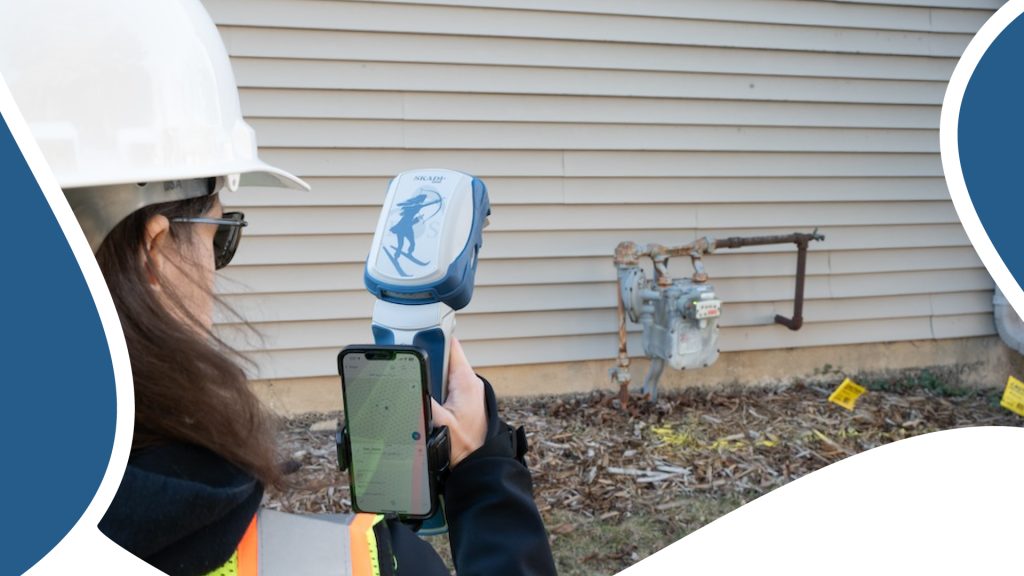
What is the Extensible Virtual Range Pole™? Overview and Explanation
This article will provide a foundational understanding of the Extensible Virtual Range Pole™ mode of the Skadi Smart Handle™.
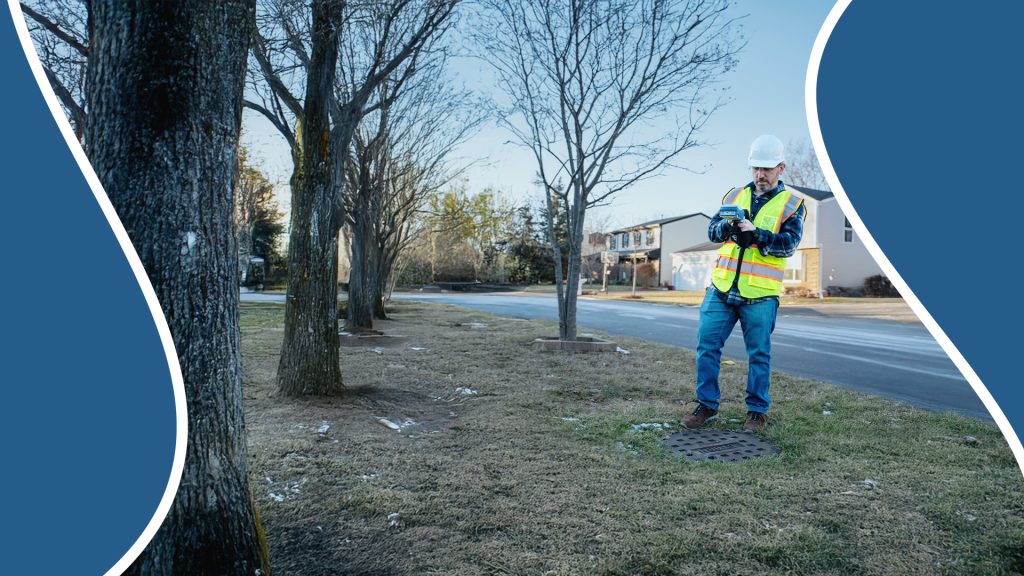
What is the Invisible Range Pole™? Overview and Explanation
This article will provide a foundational understanding of the Invisible Range Pole™ mode of the Skadi Smart Handle™.